- Title:
- Enter the name of the Shader. This name will appear in the top left of the inspector.
- Preview:
- This is the thumbnail that appears in the Shader Inspector and in the thumbnail field of the Catalog.
The thumbnail representing the Shader must be a 128 x 128 pixel jpeg file.
- The Preview width provides the size represented by the image in the real world in cm.
 NB: If you do not provide a preview, Artlantis will use the diffuse image resized to 128 x 128 pixels. NB: If you do not provide a preview, Artlantis will use the diffuse image resized to 128 x 128 pixels.
- Diffuse:
- The image must be present. This is the visible part of the Shader. Depending on the pattern, we recommend an image size of 512 x 512 or 1024 x 1024 pixels.
NB: If the image is not square, Artlantis will stretch it to make it square.
- The diffuse width provides the image in cm at scale 1.
- Depending on the representation, this size may differ from the preview thumbnail. The diffuse image does not necessarily represent the same image as the thumbnail.
NB: The diffuse image represents 4 times the size of the thumbnail image but its pattern is 3 x 3 the size of the thumbnail in order to avoid a repeat effect.
- The diffuse image is not visible in the Shaders inspector but displays in the Catalog Preview field.
- :
- The image is optional. It is generally in gray scale but may be in color.
Its size in pixels must be the same as the diffuse image. Otherwise, Artlantis will stretch it depending on the size of the diffuse image.
The purpose of the reflection image is to modify the reflection value:
- In black pixels, the cursor value is multiplied by 0.
- In white pixels, the cursor value is multiplied by 1.
- In intermediary pixels, the cursor value is multiplied by the intermediary value.
- It is used to limit the effects of reflection to a certain parts of the diffuse image.
NB: The cursor is limited to between a minimum and maximum. For example, entering a value of 0.35 will define a cursor that will range from a minimum of 0 to a maximum of 0.35.
- You can test the effects of each of the settings in real time in the Preview window.
- :
- The image is optional. It should be in gray scale.
Its size in pixels must be the same as the diffuse image. Otherwise, Artlantis will stretch it depending on the size of the diffuse image.
The Shininess image is used to modify the cursor value: Same as Reflection.
- Bump:
- If the Shader has no Bump image, the cursor will be available in the Shaders inspector and Artlantis will use the diffuse image to provide bump. Hence, the bump image will always be available and will use less system memory.
- Normal:
- The image is optional. The colors use strict rules to define the bump simulation. Generally, it replaces Bump, but Artlantis can support both.
- Important: It is not simple to create a "Normals" image.
If the Shader has no Normal image, the cursor will be disabled in the Shaders inspector.
- Transparency:
- The image is optional. It should be in gray scale.
It serves to simulate the holes and transparencies of the Shader.
- In black pixels, the Shader is opaque.
- In white pixels, the Shader is transparent.
- Save Shader:
|
 Creating a Shader
 material and seleting the option Create Shader From...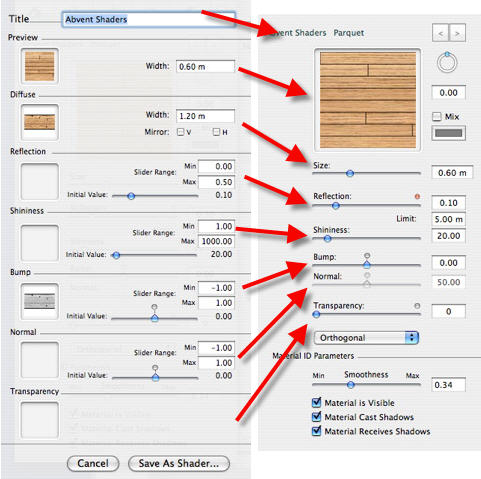

 See Also