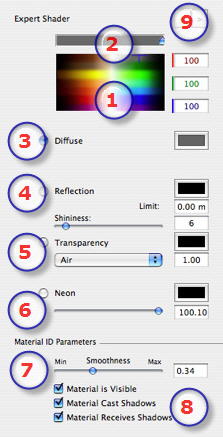
- Color Selector:
- Click to select a diffusion color or enter numerical values (1 to 255) in the RGB fields.
- Saturation:
- Use the slider to choose the color saturation level.
- Diffusion Color:
Another way to select a color is to click to choose a color from the system color picker.
- , :
- Gives a reflective appearance to the material.
- Drag the slider to make the material reflect its environment or enter a value in the related field. The reflection intensity is managed using gray scale values or RGB values from 0 to 255. Click on the selector to choose a color.
- Entering a Limit value defines the maximum distance of the reflection.
- Transparency:
- Click on the selector to choose a color. If the color is dark, the material is opaque. If it is light, the material is transparent.
- To associate a refraction index with transparency, select an index from the drop-down menu (air, plastic, water, etc) or enter a value in the appropriate field.
- Neon:
- Drag the slider to adjust the neon power or enter a value in the related field. Click on the selector to choose a color.
 NB: Neon color does not emit light. NB: Neon color does not emit light.
- Material ID Parameters:
- Use the slider to choose the smoothness level for the material.
- Material Characteristics:
- The material is visible or invisible.
- The material either projects shadows or it does not.
- The material either receives shadows or it does not.
- Shader/Textures Navigator:
- For a material, this makes it possible to navigate between related Shader and Textures editors.
|
 The Expert Shader
 Materials List: displays the materials of the scene.