You are here: Shaders > Shaders: Procedural, Mirror, Transparent, Marble, Lines


Shaders: Procedural, Mirror, Transparent, Marble, Lines

Materials List: displays the materials of the scene.
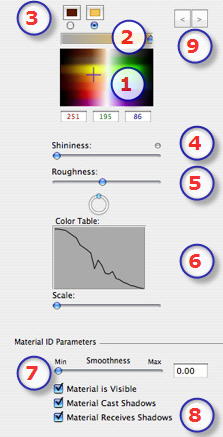
  1. Color Selector:
  • Click to select a diffusion color or enter numerical values (1 to 255) in the RGB fields.
  1. Saturation:
  • Use the slider to choose the color saturation level.
  1. Color Picker:
  • Shader defined by 2, 3 colors or more (ex. Darnier).
  1. Specular:
  • Specular: Drag the slider to make the material reflect its environment or enter a value in the related field.
  1. Roughness:
  • Moving the slider lets more or less light move on the material.
  1. Color Table:
  • Defines the gradient mode between 2 colors. The mixture depends on the Shader's geometry. E.G. Damier, Lines, Stone, Marble, etc.
  • Click on the curve, hold the button depressed and retrace the curve.
  • A horizontal line at the top or bottom of the table indicates that a single color is applied.
  • A diagonal straight line indicates a regular shading.
  • Flip The button turns the Shader around its object.
  • Scale: Moving the slider adjusts the Shader proportionately.
  1. Material ID Parameters:
  • Use the slider to choose the smoothness level for the material.
  1. Material Characteristics:
  • The material is visible or invisible.
  • The material either projects shadows or it does not.
  • The material either receives shadows or it does not.
  1. Shader/Textures Navigator:
  • For a material, this makes it possible to navigate between related Shader and Textures editors.

Add Textures


Artlantis User Guide : Shaders: Procedural, Mirror, Transparent, Marble, Lines

© 2008 Abvent www.artlantis.com