Preferences Settings

The Artlantis parameters enable you to organize the work environment.
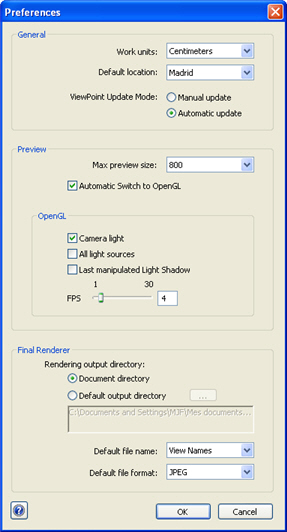
Access: Edit Menu > Preferences

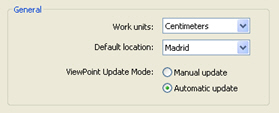
General Information

  • Work units: In the pop-up menu choose (mm, m, cm, inches, feet and inches).
  • Default location: In the pop-up menu. The change becomes effective the next time a DWG, DXF or 3DS file that does not contain any location-related information is opened.
  • Viewpoint Update Mode:

Select the viewpoint update in manual or automatic mode. This concerns the positions of the camera, the viewpoint, the roll and focus distance.

  • Automatic update
    Each time the camera settings are modified, it is the last state that is used and the previous states are not retained. Except when clicking on the Back tool, provided the document has not been saved in the meanwhile or another viewpoint has not been activated).
  • Manual update
    When the camera settings have been modified and the user wishes to keep them, the user must update the new state.
    If the new state is not updated, the next time the file is saved or the next time the viewpoint is changed, the viewpoint that was last updated will be the one to display.

In manual update, in the viewpoints list, the thumbnails will be updated when the user clicks on the Update button, or when a new view is activated.

The thumbnails in the list will not be updated when Shaders, lights or backgrounds are modified.
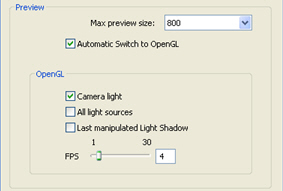
Preview

  • Max Preview size:
    Choice of the maximum size of the Preview window content (using the shortcut Control +). In the pop-up menu (640, 800, 1024, 1200), the value means the size of the preview image displayed in that window.
  • Automatic Switch to OpenGL: When this box is checked, the display mode switches from photorealistic to OpenGL mode when the camera is moved. It makes it possible to speed up the display for small machine configurations.

NB: The refresh time of the window is proportional to the size of the display.

OpenGL

    The following different options affect the Preview window rendering display in OpenGL mode.

    • Camera Light:

    Checking this box simulates an omni-directional white light linked to and originating from the camera. The scene is always lighted.

    NB: This option is independent of the anti-aliasing of the final rendering.

    • All light sources:

    When checked, this box activates the effect rendering for all active light sources: lights and sun.

    NB: The refresh time of Preview slows down when the option is activated.

    • Last manipulated Light Shadow:

    When checked, OpenGL takes into account shadows cast for the last lighting scheme or sun that was manipulated.

    NB: The refresh time of Preview slows down when the option is activated.

    • FPS:

    Increases or reduces OpenGL navigation fluidity. The greater the number, the better the fluidity. On the other hand, a low number provides better image definition.

    Move the slider or enter a value of between 1 and 30 images per second.

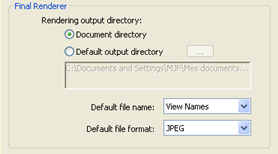
Final Renderer

Rendering output folder:

2 default choices for the default rendering output folder:

  • Document directory: The renderings are saved at the same level as the current file.
  • Default output directory: Click on the button to choose the folder.

Default file name:

Either the name of the viewpoint, or the name of the document plus the name of the viewpoint.

Default file format

In the drop-down menu choose: JPEG, BMP, TARGA, PICT, TIFF, Photoshop, or Piranesi.


Artlantis User Guide : Settings

© 2008 Abvent www.artlantis.com