 Editing a Scene
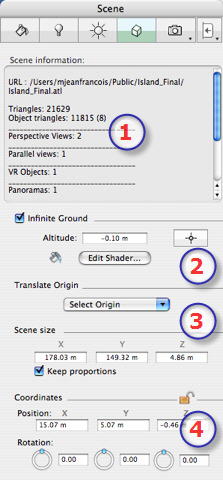
Editing a SceneIf no object is selected, the inspector palette displays information related to the entire scene.
|
Resizes: geometry, objects, cameras, lights, etc.). No impact on the size of Shaders and textures. Editing dimensions; if Keep proportions is checked, X, Y and Z remain homothetic.
|
|
Artlantis User Guide : Editing the Scene |
© 2008 Abvent www.artlantis.com |
 . Then, in the Preview window, click on the scene element that will define the height of the ground, or enter a value into the related field.
 locks them and clicking on
  unlocks them.