 13 - The Lights Inspector
13 - The Lights Inspector
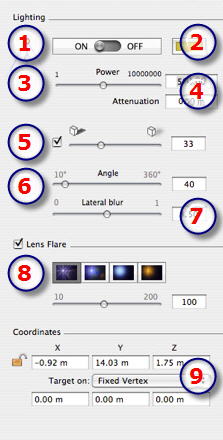
Edit lighting schemes based on viewpoints. Interactive settings and immediate results in the Preview window. Using the appropriate and correctly adjusted light model promotes the work carried out on the materials. Light groups may be attached to 1 or more viewpoints. The lights are characterized by an illumination limit and a maximum illumination area.
 Lights List: for handling lights on the list shown.
|
|

 Example: editing a light
|
Artlantis User Guide : Light Inspector |
© 2008 Abvent www.artlantis.com |
 NB: in this area, the illumination principle is based on reality. The closer an object is placed to the light source, the more illuminated it appears.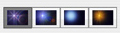
 locks them and clicking on
  unlocks them.