You are here: Objects > Editing Objects


Editing Objects

Select an object from either:

The inspector palette displays the information.

In the case of aStandard object:

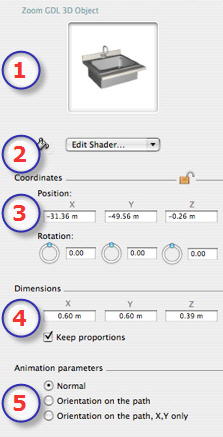
  1. Preview Thumbnail.
  2. Edit Shader...
  • Choose the material to edit from the list, the Objects inspector switches to Shaders mode.
  1. X, Y, Z Coordinates
  • Position: Provides the x,y,z coordinates for the object's anchor point. Entering new values redefines the position.
  • Rotation: Used for pivoting the object on the x, y and z axes.
    Shift +click dragged with cursor limits the movement to a step of 15°.
  • Clicking on locks them and clicking on unlocks them.
  1. Dimensions : For modifying the parameters: length, width, height.
  • Click on the checkbox to maintain the proportions. Clicking again removes the restriction.
  1. Animation Parameters:
  • Object Position: 3 options
  • Normal: The object always moves parallel to its starting position. (e.g. a vector that always retains its orientation regardless of the object's path).
  • Orientation on the Path: The object moves in x, y, z in the direction of the path (e.g. an aircraft performing a loop).
  • Orientation on the path, X,Y only : The object moves in x, y, z in the direction of the path but always remains parallel to ground level x,y (e.g. a helicopter taking off).

NB: using the timeline, in a single sequence, the object can change behavior several times.

Example: Editing an Object

Object Animation:

Working in the Timeline Window

List of Parameters that Can and Cannot be Animated


Artlantis User Guide : Editing Objects

© 2008 Abvent www.artlantis.com